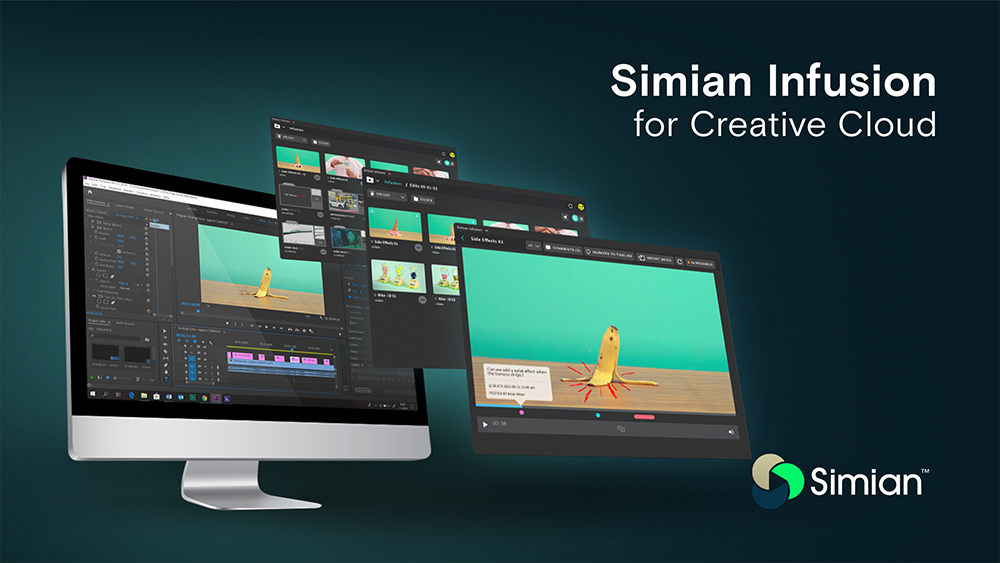
Our Infusion plug-in streamlines the process of working in Premiere Pro and After Effects. It syncs directly with your Simian account for seamless collaboration between editors, designers, VFX artists and clients.
- Infusion brings all the functionality of Simian directly into the Premiere Pro and After Effects environments.
- Editors and artists can pull comments and annotations directly from Simian.
- Comment and annotation markers sync up directly with video timelines for faster reference.
- Collaborate in real time and post responses or revisions directly from the Premiere Pro or After Effects environments and share with the entire team.
- Eliminates need for cross referencing comments in emails or IMs, or switching between apps
- Upload and share cuts, scenes, effects or graphics sequences directly to Simian Project folders.
Installation:
Get started working smarter by
downloading Simian Infusion
from Adobe Exchange.
Mac System Requirements: macOS Mojave/Catalina/Big Sur/Monterey, Premiere Pro 2021 or higher Windows System Requirements: Windows 10 (64-bit) v1903 or Windows 11, Premiere Pro 2021 or higher
Manual Installation:
If you’re unable to install
Simian Infusion from the Adobe Marketplace, below are alternate methods of
installation.
For manual installation, download the
ZXP file
and see instructions below.
Note: Manual installations will not receive automatic updates through the Creative Cloud App, and new versions will require a manual re-installation.
Manual Installation (macOS and Windows)
Download the ZXP
package, and choose one of the options below.
Option 1: Using a 3rd-party GUI tool
Note: This installation tool is not developed by or supported by Simian, although we have successfully installed Infusion using it.
- Download and run Anastasiy’s Extension Manager from http://install.anastasiy.com
- Drag and drop the com.gosimian.infusion.zxp file into the right side of the Extension Manager window.
Option 2: Command Line Installation
Note: These instructions use the UPIA tool that is automatically installed with the Creative Cloud desktop app version 5.5 and above.
- Open the command line:
Windows: Open the Start menu, search for “cmd,” right-click Command Prompt and choose “Run as Administrator.”
macOS: Open Terminal by double-clicking its icon in the Applications/Utilities folder.
- Navigate to the UPIA folder:
Windows: cd "C:\Program Files\Common Files\Adobe\Adobe Desktop Common\RemoteComponents\UPI\UnifiedPluginInstallerAgent"
macOS: cd "/Library/Application Support/Adobe/Adobe Desktop” Common/RemoteComponents/UPI/UnifiedPluginInstallerAgent/UnifiedPluginInstallerAgent.app/Contents/MacOS"
- Run the installation command (replace the path to the .zxp file if you’ve downloaded to a location other than the default download folder)
Windows: UnifiedPluginInstallerAgent.exe /install C:%HOMEPATH%\Downloads\com.gosimian.infusion.zxp
macOS: ./UnifiedPluginInstallerAgent --install ~/Downloads/com.gosimian.infusion.zxp