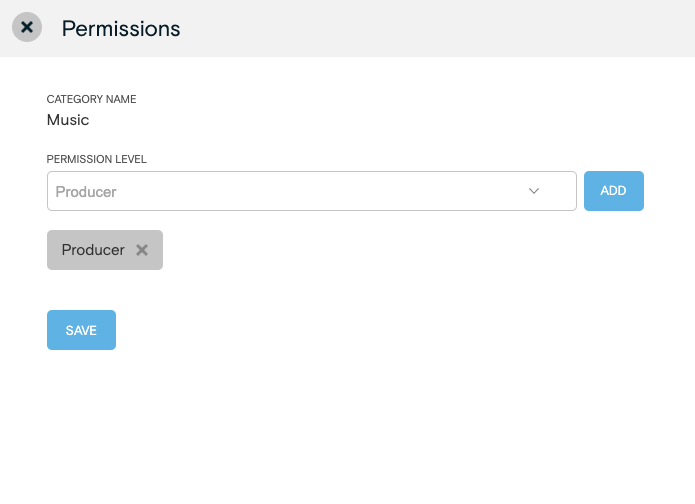
LEARN HOW TO SETUP MEDIA LIBRARY CATEGORY PERMISSIONS WITH LIMITED ACCESS
* This is an Enterprise Only feature and only available on Enterprise level accounts.
Restrict access to Media Library Categories.
- From the main navigation, click Categories & Credits under the Media menu.
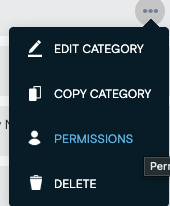
- From the category list on the left, select the action menu from the category and select the permissions option:

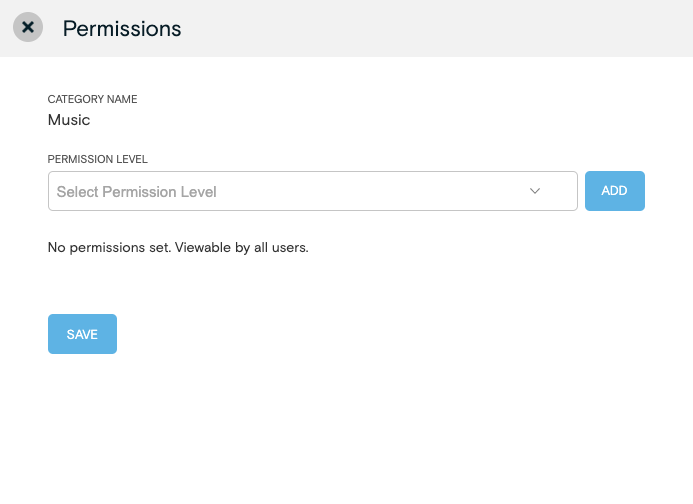
4. After selecting the permission level, click 'ADD'. You can add more than one permission level to the restricted view. Once done, click 'SAVE'