Learn how to merge multiple files into version stacks
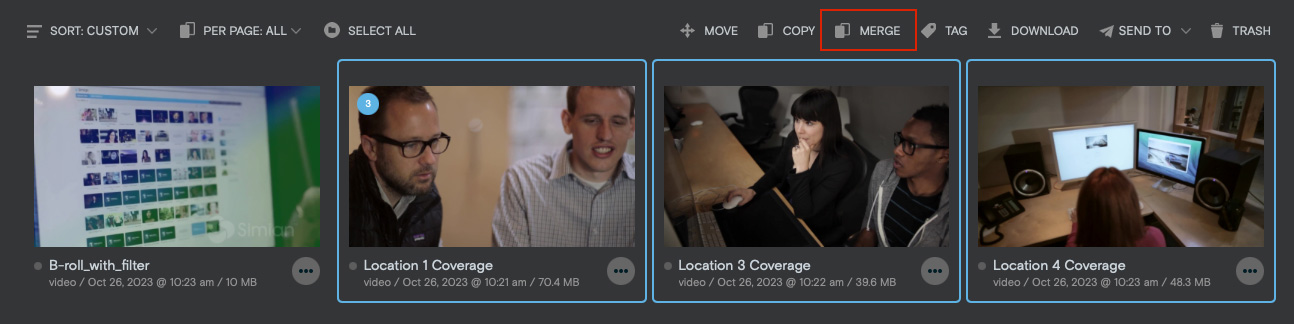
Within the Project Dashboard, select multiple files by holding shift and clicking the desired files, then click merge in the above menu.
Alternatively, click and drag a file over the file you want to merge with. Hold the file for a few seconds and the merge prompt will appear. Release the file to merge.
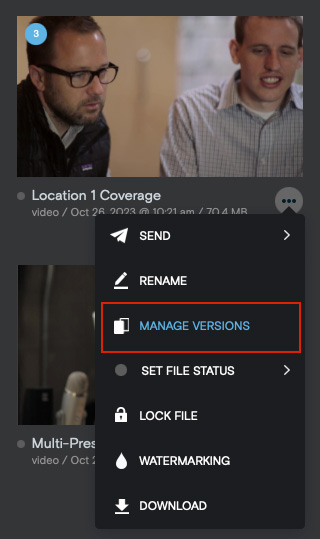
- Mouseover the actions (...) button and click Manage Versions in the dropdown menu. Here you can add, edit and delete files, as well as rearrange the order in which they are stacked.
- To add media from your computer to a version stack, drag the file you want to merge to the uploader portion of the window, or click on the uploader to open a file browser.
- From within the Project Dashboard, double click a version stack to open the File Detail screen.
- At the top of the screen, click the dropdown labeled v1 to view the desired file versions side by side.
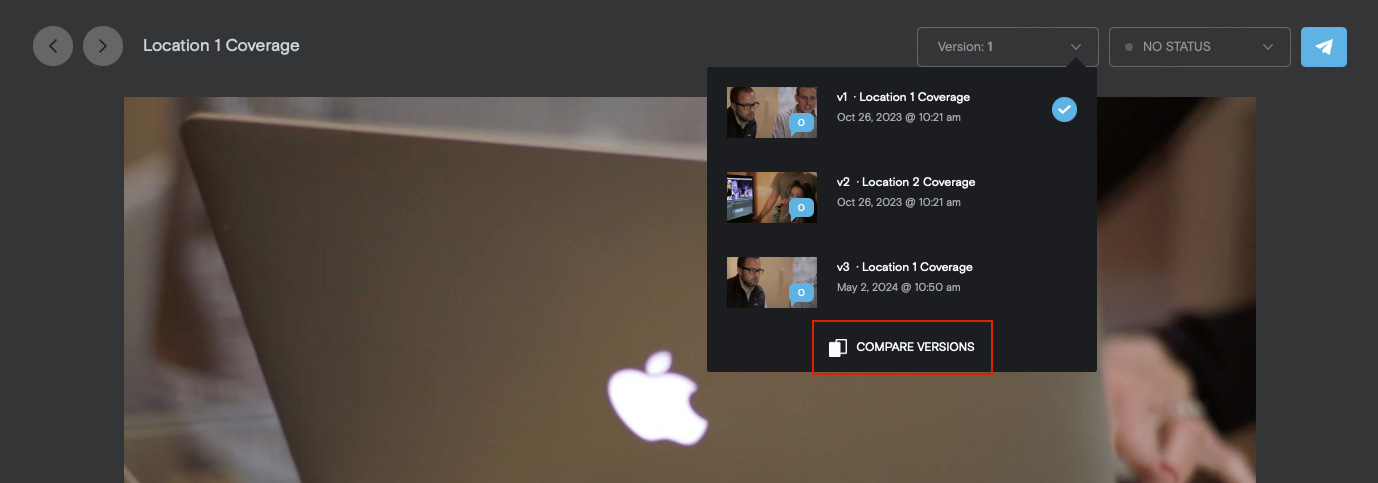
Note: The compare option is only available for video and image files. File types must match.
Files or folders with version stacks can be sent in the same way as single files, however, when a version stack is sent, all versions of the file are available for viewing.
Sent presentations also have the option to select and compare versions.