Learn how to embed a reel for use on websites and press releases
- Save a reel to Web/API Reels.
- From the Reel Library, click the upper-left dropdown and select Web/API Reels.
- Mouseover the actions (...) menu next to the desired reel and click Integration.
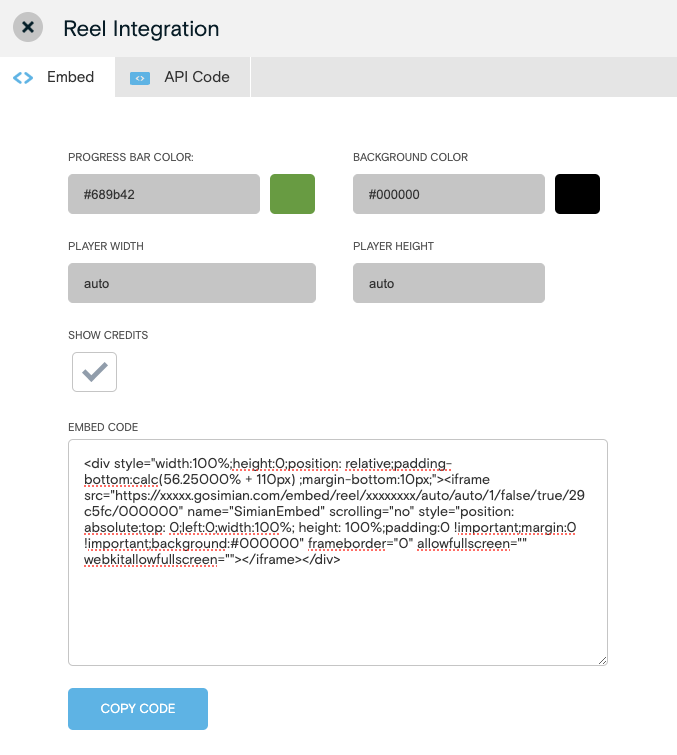
The following customization options can be tweaked:
- Color: Changes the color of the video player’s progress bar and background.
- Width/Height: Configure the player width and height manually or automatically choose the most responsive settings
- Autoplay: Check to turn on.
- Show Credits: Check to turn on.
The embed code will automatically update as changes are made. When customization is complete, click Copy Code to copy the embed code to your clipboard.
Customizing for Mobile:
Reel embeds will not reformat for mobile devices. In order to display an embedded reel in mobile format, you must implement custom handling on your website.
- Your website needs to detect mobile devices via server side or client side code and display an alternate embed iframe.
- You will need to modify the generated embed code for mobile format; in the iframe source URL, change the /embed/reel/ parameters to /mobile/reel/
- You will need to specify the width/height of your iframe to adhere to the size of the site and the content of the reel.